Jan 3, 2014

How possible to make conference calls easy with Android apps

0 comments
How possible to make conference calls easy with Android apps
The popularity of tablet devices has made things such as conference calls more popular. It is possible to do it on a phone, but you get a bigger screen with a tablet. There is PC and laptop based conference functions and tools that are far better than those available on tablets and mobile phones, but if you are out and about (mobile), then a conference call on a mobile device is all the option you have.

Managing your conference call

This all depends upon the apps or software you use. In this day and age you should not have to pay for conference calls in the same way you would pay for phone calls. There are many apps that will also require the other person to have the app installed. Try to pick an app that allows for free conference calls, and pick one that makes managing your calls very easy.

Setting up conference call appointments

This is now a common feature on Android conferencing apps and it is suggested that you find an app that has it. It brings up a calendar for when your next conference call is going to take place. Assuming that all the participants are using the same app it means you all may add in a conference date and then have the app remind you when it is time. This allows you to plan your conferences ahead, safe in the knowledge that all the other participants are going to be reminded of it.
Recommended Read:Google Play Service
If you find an app that will automatically dial or log in to the conference, then many of them also have a password function. This means that the call cannot be attended by the person who set up the app (whom you would assume is the legitimate participant). This is handy for if the conference call does not have a video function. It allows you a little more security just in case another person is listening on the end of the line. In this scenario that person would have to have the correct password to attend.

Traveling and conference calls

The best and most obvious time to use conference calls on your Android are when you are traveling around. Otherwise why not make your calls and communications via a PC or laptop. You can make the whole conference call process a lot easier and a lot less hassle for yourself. If you can get a good signal then you may contact other people whilst on the move.

Many apps that allow conference calls will also allow a number of other functions, with the most predominant one being email. It is up to you if you use them, since most people have access to their work and personal emails from their androids anyway, but it is a nice option to have if you wish to contact other people about your conference calls. For example, you may email a bunch of people and tell them what time you will be hosting a conference call.
Recommended Read:Best Google Apps of 2012 for Android
Some conference calling tools will also go a further step. They will produce templates for messages. This will allow you to quickly send out text messages or emails with a certain template message such as “There will be a conference call at …” This is quite convenient if you have already inserted email addresses or phone numbers in to the tool. The fact you are able to send these messages in bulk is also very convenient for when you are arranging meetings and conference calls.

Look out for free conference call apps

This is something to consider when you are choosing the right conference call app for you. You could pick one that is free to download and free to use. This may seem like a trivial matter but it will make it more likely that other people will use the app too. If you pick an app that you have to either pay to install/download or pay to use then that is fine, but other people may not be willing to pay. If it is free in every sense of the word then it is far more likely that other people will be happy to install and use it.

Does the app call landline numbers and/or mobile numbers?

The previous text is all about contacting between one app and another on mobile devices, but what if you need to conference with people on their mobile phone number or landline number. You will need to find an app that does that. There are a few, but as you may imagine you will have to pay for the call. There is also the fact that for each person you call you will have to pay for. You could conference with three other people and potentially be paying for three phone calls at one time.

Author’s bio:
My name is Sonia Jackson. I represent the web-site www.cool-essays.com. We’ll help you to solve all problems with writing different essays and research papers in a short time.
Read full post »

Sep 20, 2013

Top 3 Photo Editor Android Apps

0 comments
A While back, I wrote about Night Vision Goggles on Your Android Device. Night Vision Camera tries to utilize your smartphone's Camera competencies to improve images and utilizes a luminance boosting algorithm to upgrade the picture brightness. The Google Play Store has lots of photography apps. We rounded up the best apps for capturing photos, making collages and editing images.

Photo Editor by Aviary


Aviary is a powerful photo editor which aviary created because we wanted a quick and easy way to edit our photos on the go with no fuss. They have included all the tools you need, in a super intuitive interface so you can get right to editing.
Photo Editor by Aviary Photo Editor by Aviary
Aviary Inc.
   star on dark img Photo Editor by Aviarystar on dark img Photo Editor by Aviarystar on dark img Photo Editor by Aviarystar on dark img Photo Editor by Aviarystar half dark img Photo Editor by Aviary

Pixlr Express


Its nice having multifunction to edit your images as per your choice save to gallery and share to social network in one touch.

Features

Crop, resize, straighten and rotate images easily. ‘Auto Fix’ photos for a one-click fix to balance out colors, adjusting for dark photos and poor lighting conditions. Remove red-eye and whiten teeth with simple tools. Overlays help you adjust the mood – amplify the tone, cool it down, or add surreal shades. Lighting effects can add drama, sparkle or a grunge look. Easily adjust the intensity and orientation of each effect. Finish off your photo process with the right border – pick a style that fits you. Look like a pro with cool photo effects like focal blur, denoise and more.
Pixlr Express Pixlr Express
Autodesk Inc.
   star on dark img Pixlr Expressstar on dark img Pixlr Expressstar on dark img Pixlr Expressstar on dark img Pixlr Expressstar half dark img Pixlr Express

Pixlr-o-matic


You can add fun retro effects to your photos in a snap and transform your photos into cool looking vintage images. Editing is as easy as one, two, three with Pixlr-o-matic to add effects, overlays and borders. So many options to choose from, there are more than 5,000,000 possible finishes to make your photos look spectacular!
Pixlr-o-matic Pixlr-o-matic
Autodesk Inc.
   star on dark img Pixlr-o-maticstar on dark img Pixlr-o-maticstar on dark img Pixlr-o-maticstar on dark img Pixlr-o-maticstar half dark img Pixlr-o-matic

Features:

  • Color overlays help you adjust the mood – amplify the tone, cool it down, or add surreal shades
  • Lighting effects add drama, sparkle or a grunge look
  • Finish off your photo process with the right frame – pick a border style that fits you
  • Want it all in a single swipe? Try the randomizer and we’ll select an effect, overlay, and border for you.
  • No camera required! Select a photo from your gallery and start applying effects. If your device has a camera, you can also snap a new picture from within the app
  • Share your vintage image directly with your friends through Facebook or imm.io
  • Export your finished image back to your gallery. Images can be saved in high resolution, depending on the resolution of the original image.

Read full post »

Aug 17, 2013

Who Unlock Your Samsung Galaxy S III

0 comments
Ever wanted to know who tried snooping into your phone while you were away. Your friends or family member might have tried to unlock your phone. Hidden Eye is a simple app with no frills that will photograph the person when they try to unlock your phone. You can set it to play your ringtone when a user tries to unlock your phone without your knowledge.
Recommended Read: Bitdefender Antivirus Free for Android Device


Recommended Read: Hit Mobile App Doodle Jump Review
Hidden Eye is a straightforward provision that takes a photo through the front-back Polaroid at whatever point anybody has a fizzled endeavor at sorting in the secret key on the lock screen.
The most noticeably bad situation could be that you leave the telephone around an aggregation of companions, return and get that the sum of your social media accounts have been hacked. When you holler out to your companions asking who did it, neither man nor woman makes a sound.

HOW TO


  • Enable screen security lock on your phone.
  • Install and launch the app "HiddenEye"
  • Set the Security Status to ON.
  • Activate the device admin for Hidden Eye and that's it. You are now ready for the action.

HOW TO UNINSTALL


  • Set the Security Status to "OFF"
  • Uninstall the app
Hidden Eye Hidden Eye
Midas Ensemble Technologies
   star on dark img Hidden Eyestar on dark img Hidden Eyestar on dark img Hidden Eyestar on dark img Hidden Eyestar off dark img Hidden Eye

Read full post »

Aug 12, 2013

Plan B - Find Your Missing Android Device

0 comments
P
lan B is your last resort to find your missing phone. This is the first and only 'find my phone' app that you download AFTER you've already lost your phone. Having Lookout on your phone is the best way to protect your phone and find it fast, but use Plan B if you have already lost your phone and didn't have Lookout installed.


Recommended Read: Lookout Mobile Security

How To


  • Install Plan B to the phone that i give you App Container Below
  • Plan B will start automatically and send your phone’s location to your Gmail address.
  • To locate again after 10 minutes, borrow a friend’s phone and text the word “locate” to your lost phone.

Recommended Read: Best Applications for Online Cloud Storage

Using Plan B is simple, but requires access to the Android Market website and your Google account. (If you have an Android phone, you already have a Google account.)

After you install it, Plan B will start locating your phone using cell towers and GPS. On some phones, Plan B can switch GPS on automatically. Your location will keep updating for 10 minutes, and you will get an email each time it is located, whether the phone is moving or standing still. You can start the process again by texting “locate” to your number from any other phone. In order to locate your phone, we send you a text via SMS, so standard message rates apply.

Once you have found your phone, download Lookout Mobile Security to add all the essential protections that your phone needs, including security scans for malware and spyware, backup for your contacts and all the best lost and stolen phone protections -- all in one easy download!

Plan B Technical Details


  • You'll get one email message when Plan B starts, and up to 5 other messages as it refines your phone's location or tracks it as it moves.
  • Each location email will include an accuracy rating in meters.
  • Plan B will attempt to launch as soon as it downloads, but in some cases you will need to send an SMS to get it started.
  • Note that your location is only sent to the Gmail address that is already associated with your phone; nobody else can access your location using Plan B.
  • U.S. Users: If a data connection is not available, Plan B will use mobile-originated SMS messages to send your location to your email address.Regular SMS rates may apply.

Plan B Plan B
Lookout Mobile Security
   star on dark img Plan Bstar on dark img Plan Bstar on dark img Plan Bstar on dark img Plan Bstar off dark img Plan B

Recommended Read: Android Photo Recovery

Video Tutorial


Read full post »

Android Photo Recovery

0 comments
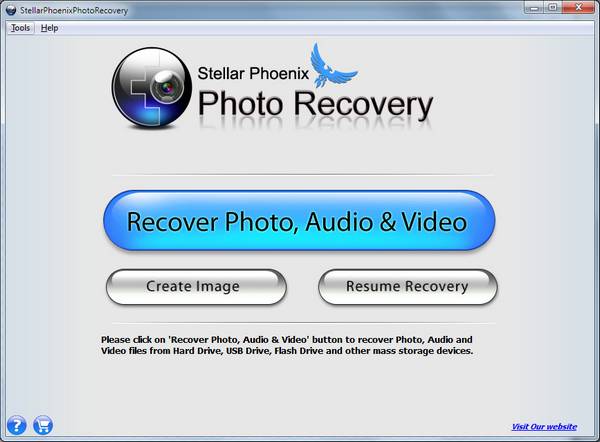
Stellar Phoenix is data recovery application. Windows data recovery for windows is also available here. Now, They are introduce recover data from your Android devices. The utility can recover data from formatted volumes and partitions, CDs, DVDs, and other external media. E-mails can also be recovered from corrupted PST files and DBX files from Outlook and Outlook Express. Android Photo Recovery is a really supportive Android photo recovery tool to recuperate all your apparently lost photographs, films, music and other media documents from Android telephone or tablet.
Android Photo Recovery

Download Form Here:


Android Photo Recovery Can:

  • Digital Photo Recovery
  • Video File Recovery
  • Audio File Recovery
  • Digital Camera Picture Recovery
  • Memory Card Recovery
  • Recover Pictures from Formatted Card
  • Option to Add File Headers
  • Supports > 2 TB Storage Media
  • Improved Scanned File Preview Option
  • Instructive User-friendly Interface with Resize Option

Recommended Article: Stellar Phoenix - Recover Your Data

How to recover data from formatted memory card by Android Photo Recovery


  • Open Android Photo Recovery, Click on Start scan.
  • Choose the drive to start scanning.
  • Now, the scanning process will commence. After scanning, list of folders indicating each file formats will be displayed in the left pane.
  • Click each folder to view files in it. For file preview, just click on any file (or use up & down keys).
  • You can either recover all or selected files displayed in the tree generated by clicking on the recover icon.

How to recover photo, music and videos using Android Photo Recovery


  • Connect the card through the card reader (preferably) or the drive to the system.
  • You can see the card/drive in the left hand panel of the software.
  • Double click on the card (shown in the left hand panel of the software).
  • Select the "Photo Recovery" icon.
  • Select the Type of files (that you want to recover) from the list of supportive file.
  • Click on OK to start the scanning process.
Read full post »

Jun 14, 2013

Install Adobe Flash Palyer on Android Device Manually

0 comments
A
s we all know, Adobe Flash Player is used to load flash content in favor of HTML5 on Android Smartphone ans tablets. Sometimes get error while installation of Adobe flash Player on Android Device. So, Today i am going to show you how to install Adobe Flash Player manually on your Android Device.

Also Read:


Note: Google chrome or the browser already in your phone will not support Adobe flash player. You should have a Boat browser or Firefox to work it out.
Read full post »

May 31, 2013

How to unlock Pattern lock Too many Attempts

0 comments
P
attern lock is to keep safe your Android device from other. In previous post i suggest to use pattern lock and i gave review about Smart Lock Android app. This app is free if you have no problem with premium you can install premium app on your device you can get premium Smart Lock app from here. It's very useful app for me. If you are using free version of smart lock sometime get in trouble like my friend who got this trouble with it.

If Someone tried to unlock your pattern lock and attempts many time, It will be block and you have to unlock with your Google ID and password. When attempts many time, you can only receive call and dial Emergency call only. It creates problem when your id and password trick also not working. You tried right email id and password but it's not working. Now you have to wipe your data and delete all user data. So, I suggest to you all that synchronize your contact with your Google account Whenever you wipe your data you'll be get back from Google account. Below this app will help you.
Go Contacts - Sync Your Contact
Go Calender - Make easy Your Calender


How to unlock Pattern Lock

  • Turn off Your Phone
  • Now hold Power button and menu button at the same time for few seconds
  • You will see menu there option here is not working touch you have to access it from volume up and down keys
  • Select "Wipe data factory reset" and you will be forward to confirmation
  • Confirm that you'll delete all data by selecting "Yes - Delete All User"
  • After Factory reset your phone Setup your phone just like you did the first time you unpacked it (use the same Google Account if you want your old contacts back!)
  • Restore any manual back-ups and install your previous applications from the My Downloads list.
Read full post »

May 27, 2013

Backup and Restore Android Phone App

0 comments
T
he backup service is not designed for synchronizing application data with other clients or saving data that you'd like to access during the normal application lifecycle. You cannot read or write backup data on demand and cannot access it in any way other than through the APIs provided by the Backup Manager.
BackUP and BackUP Pro
Backup
Reware gives us the best application like My Backup. This is a limited 30 days trial MyBackup Pro but If you want to MyBackup Pro is the easiest backup for Android. Supporting the most content, and the most Android devices. MyBackup and MyBackup Pro will work on all Android mobile devices, regardless if they have root access or not.
My Backup Pro provides the backup support for application install files (If phone has root access, this includes the Android files (APK) and its data, contacts, call logs, bookmarks, SMS, MMS, photos, music and playlists, videos, system settings, home screen settings, alarm and calendar entries. Go To App>>

Titanium Backup
Backup
Titanium Backup is a backup utility for Android that backs up your system and user applications along with their data on external storage of your choice. It is a leading Android application that uses root access to pull all your important applications and data from the system partition and stores them for future restoration. Whether your phone is corrupted or flashed with a custom ROM, Titanium Backup can save the hassle to get your phone loaded up just like it was before. Go To App>>
Read full post »

May 21, 2013

Go Calender - Make easy your Calender

0 comments
G
O Calendar widget brings the calendar and the agenda to your home screen. It was designed to make it more simple and faster to work with your calendar. Two different views (month and agenda) give you a good overview to your upcoming events. It also supports showing Chinese Lunar and Moon phase. Compare to the traditional calendar widget, it supports switching between months by flipping like a real calendar. Moreover, like other GOWidgets, theme is also supported.
To make it work, you must install the latest version of GO Launcher EX which is the most popular home launcher app in Android Market.

Must Read:
Available Size
  • 4x3
  • 2x2
Actions
  • View month
  • View agenda
  • Flip
  • Add agenda
  • View Chinese Lunar
  • View Moon phase

GO Calendar Widget GO Calendar Widget
GO Launcher Dev Team
   star on dark img GO Calendar Widgetstar on dark img GO Calendar Widgetstar on dark img GO Calendar Widgetstar on dark img GO Calendar Widgetstar on dark img GO Calendar Widget

Read full post »